Migrating Chado
Migrating your existing Tripal 3 site to Tripal 4 involves copying the data present in Chado to a new site. The procedure for this is as follows:
Use
pg_dumpto export your chado data out of your existing Tripal 3 site. You will have to substitute your Tripal 3 site’s connection information and database name, since this varies for different sites depending on how it was originally installed.
pg_dump CONNECTION_INFORMATION --schema="chado" \
  --format=plain --no-owner --no-privileges --compress=9 \
  TRIPAL3_DATABASENAME > chado.sql.gz
Create a fresh Tripal 4 site. Instructions for this can be found on the How to Install Tripal page. It is important that you either skip the step where you Install and Prepare Chado, or if you are using a Docker image and chado is installed automatically, you should specify a name for your chado schema that is different than your existing Tripal 3 site. For example:
--build-arg chadoschema="tempchado".We recommend that you also export your existing Tripal 3 entity ID numbers, so that when you publish your content, the bio_data entity values will exactly match those that were present on your Tripal 3 site. To do so:
Copy this file from your new Tripal 4 site to your Tripal 3 server: …/tripal/tripal_chado/migration/export_tripal3_entity_mapping.php
Run it on your Tripal 3 server drush php:script export_chado_entity_mapping.php tripal3_entity_mapping.tsv
Either copy the output file tripal3_entity_mapping.tsv to your Tripal 4 server, or to your desktop computer.
If you are using docker, copy your Tripal 3 chado database dump to inside your Tripal 4 docker container using
docker cp, and then obtain a bash shell inside your docker. For example, if your container is named “tripal4” you could run
docker cp chado.sql.gz tripal4:/var/www/drupal/web/
docker exec -it tripal4 /bin/bash
Upload your Tripal 3 chado database dump to your new Tripal 4 Postgresql database. Again, substitute appropriate Tripal 4 connection information.
gunzip -c chado.sql.gz | psql CONNECTION_INFORMATION TRIPAL4_DATABASENAME
Note
ERROR: data type bigint has no default operator class for access method "gist"sitedb=> CREATE EXTENSION IF NOT EXISTS btree_gist;Now you need to check that your imported existing chado matches what Tripal 4 expects as far as cvterms go. This can be done using the command
drush trp-check-terms --chado_schema=chado
It is likely there will be things to fix!
The tool can correct some errors automatically, but it is possible that some will need manual correction.
Tip
Run this command to see more options: drush trp-check-terms --help
Once that command tells you there are no errors with your cvterm setup, then you can prepare your chado instance by going to TRIPAL4-SITE/admin/tripal/storage/chado/prepare.
Now go into your Tripal 4 site and set the newly imported and prepared chado to be your default chado.
Go to TRIPAL4-WEBSITE/admin/tripal/storage/chado/manager
Click the “Add to Tripal” button
Click the “Set Default” button.
Optional: If you had a temporary Chado schema, you can drop it at this point.
We recommend that you reserve existing Tripal 3 entity ID numbers, so that when you publish later you will have the same bio_data entity values as were present on your Tripal 3 site. To do so
On your existing Tripal 3 site, launch a psql command prompt and run this command
sitedb=> SELECT NEXTVAL('tripal_entity_id_seq');

 nextval
---------
  123456  ← make note of this number
(1 row)
On your new Tripal 4 site, set it with
sitedb=> ALTER SEQUENCE tripal_entity_id_seq RESTART 123456; ← substitue the number from step a.
Note
The plan is to add a command in the future that will help pull over url aliases from your Drupal 7 site for existing pages.
You can now import content types
Go to Tripal → Page Structure
Click on the “+Import type collection” button
Select the checkboxes on your desired collections and click the “Import” button.
You will then need to run the job. For example:
drush trp-run-jobs --username=drupaladmin --root=/var/www/drupal/web
Tripal 3 stores the term used to define the bundle differently than Tripal 4, it uses
rdfs:typefor thetype_idand for the value uses the name of the CV term e.g.genome_annotation. Tripal 4 uses the bundle term in thetype_idcolumn. Execute the following code at a SQL prompt to convert your chado records to the current method:
-- Genome Assembly:
UPDATE analysisprop SET type_id=(SELECT cvterm_id FROM cvterm T
  LEFT JOIN dbxref X ON T.dbxref_id=X.dbxref_id LEFT JOIN db D ON X.db_id=D.db_id
  WHERE D.name='operation' AND X.accession='0525') WHERE type_id=
  (SELECT cvterm_id FROM cvterm T LEFT JOIN dbxref X ON T.dbxref_id=X.dbxref_id
  LEFT JOIN db D ON X.db_id=D.db_id WHERE D.name='rdfs' AND X.accession='type')
  AND value='genome_assembly';
-- Genome Annotation:
UPDATE analysisprop SET type_id=(SELECT cvterm_id FROM cvterm T
  LEFT JOIN dbxref X ON T.dbxref_id=X.dbxref_id LEFT JOIN db D ON X.db_id=D.db_id
  WHERE D.name='operation' AND X.accession='0362') WHERE type_id=
  (SELECT cvterm_id FROM cvterm T LEFT JOIN dbxref X ON T.dbxref_id=X.dbxref_id
  LEFT JOIN db D ON X.db_id=D.db_id WHERE D.name='rdfs' AND X.accession='type')
  AND value='genome_annotation';
-- Genome Project:
UPDATE projectprop SET type_id=(SELECT cvterm_id FROM cvterm T
  LEFT JOIN dbxref X ON T.dbxref_id=X.dbxref_id LEFT JOIN db D ON X.db_id=D.db_id
  WHERE D.name='local' AND X.accession='Genome Project') WHERE type_id=
  (SELECT cvterm_id FROM cvterm T LEFT JOIN dbxref X ON T.dbxref_id=X.dbxref_id
  LEFT JOIN db D ON X.db_id=D.db_id WHERE D.name='rdfs' AND X.accession='type')
  AND value='genome_project';
-- Physical Map:
UPDATE featuremapprop SET type_id=(SELECT cvterm_id FROM cvterm T
  LEFT JOIN dbxref X ON T.dbxref_id=X.dbxref_id LEFT JOIN db D ON X.db_id=D.db_id
  WHERE D.name='data' AND X.accession='1280') WHERE type_id=
  (SELECT cvterm_id FROM cvterm T LEFT JOIN dbxref X ON T.dbxref_id=X.dbxref_id
  LEFT JOIN db D ON X.db_id=D.db_id WHERE D.name='rdfs' AND X.accession='type')
  AND value='physical';
-- Genetic Map:
UPDATE featuremapprop SET type_id=(SELECT cvterm_id FROM cvterm T
  LEFT JOIN dbxref X ON T.dbxref_id=X.dbxref_id LEFT JOIN db D ON X.db_id=D.db_id
  WHERE D.name='data' AND X.accession='1278') WHERE type_id=
  (SELECT cvterm_id FROM cvterm T LEFT JOIN dbxref X ON T.dbxref_id=X.dbxref_id
  LEFT JOIN db D ON X.db_id=D.db_id WHERE D.name='rdfs' AND X.accession='type')
  AND value='genetic';
Now find fields so that you can start configuring your content types.
Go to Tripal → Page Structure
For each of the content types, on the right select “Manage Fields”
Click on the “+Check for new fields” button.
Warning
For now, do not add the “Type” field if it is listed, see Tripal issue 2033
You can now publish your imported chado content for each of the appropriate content types. While optional, we recommend using the file generated in step 3 to preserve the bio_data entity values from your Tripal 3 site.
Warning
You can only migrate your Tripal 3 bio_data entity values the first time you publish them, so we recommend taking the extra time to do this for each content type when you migrate your site.
For example, to publish organisms using the user interface:
Go to Tripal → Content → +Publish Tripal Content
Under “Content Type” select “Organism”,
Expand the tab at the bottom of the screen
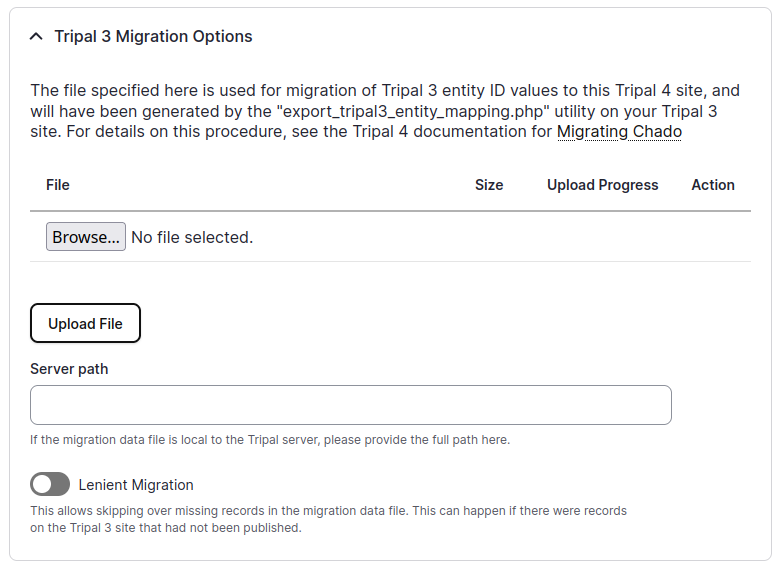
Either upload the file from step 3 above, or supply the server path.
Click on the Publish button.
You will then need to run the job. For example, to run all pending jobs:
drush trp-run-jobs --username=drupaladmin --root=/var/www/drupal/webNote
The “Lenient Migration” option may be necessary if you happen to have unpublished content on your Tripal 3 site, as otherwise this will prevent publishing. When this option is selected, these problematic records will be skipped. If you wish, these skipped records can later be published by not specifying a migration data file.
You can also publish on the command line using drush. An example of an equivalent command would be:
drush tripal-chado:publish organism --migration-file=tripal3_entity_mapping.tsv